Haze Filter Online Free - Create Atmospheric Dreamy Photos
Transform your photos with a beautiful atmospheric haze effect. Free, instant, and no software required.
Try Haze Filter Free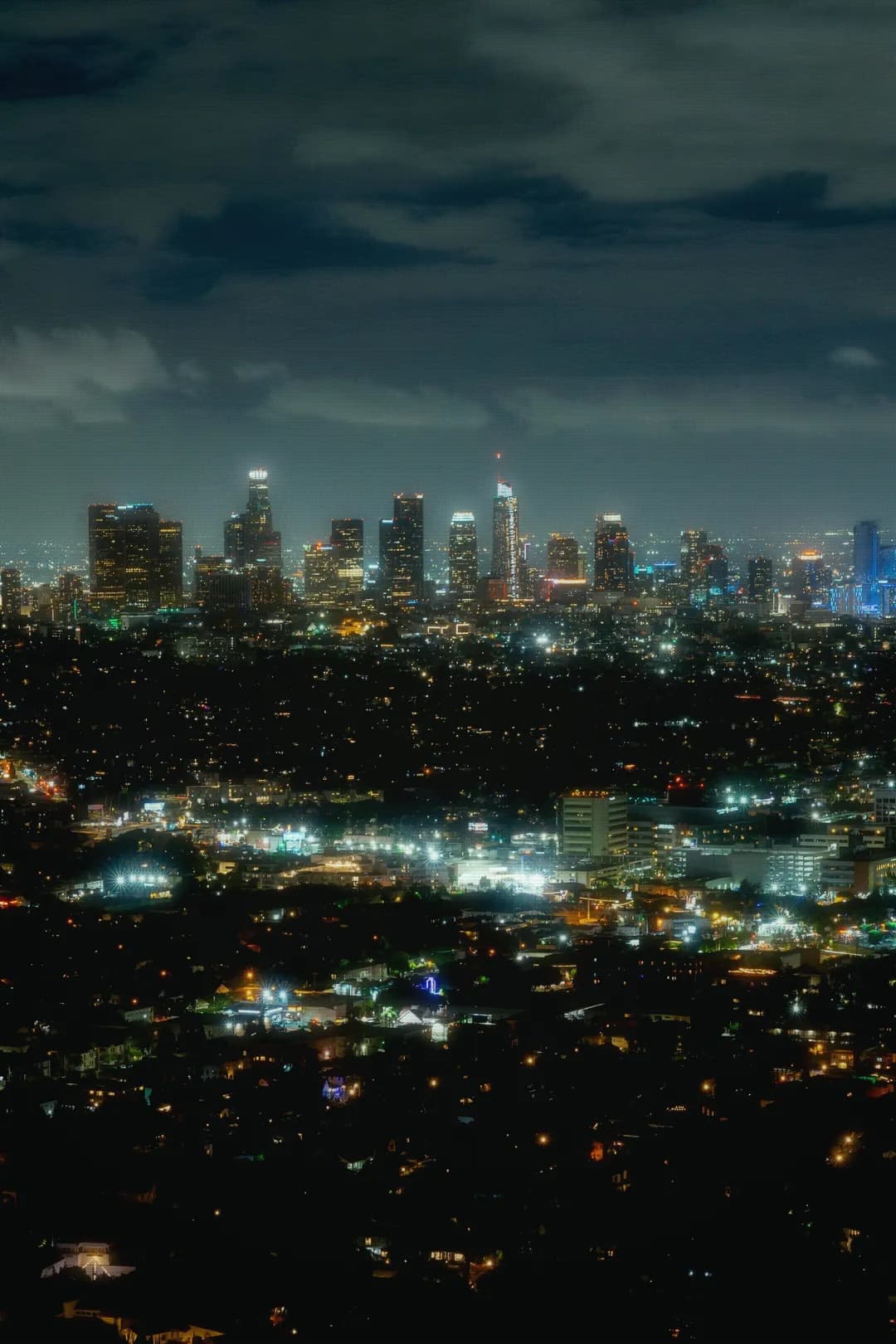
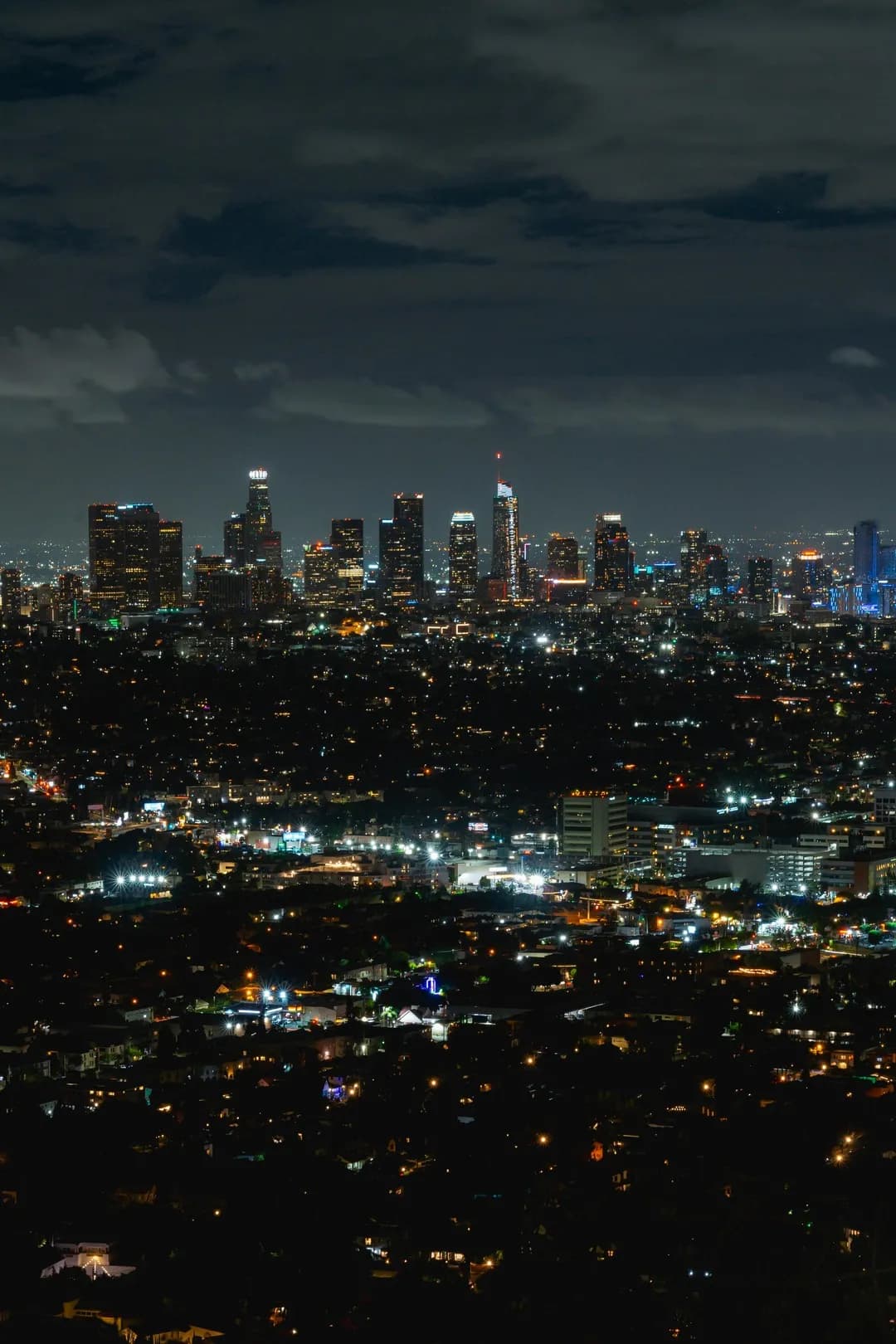
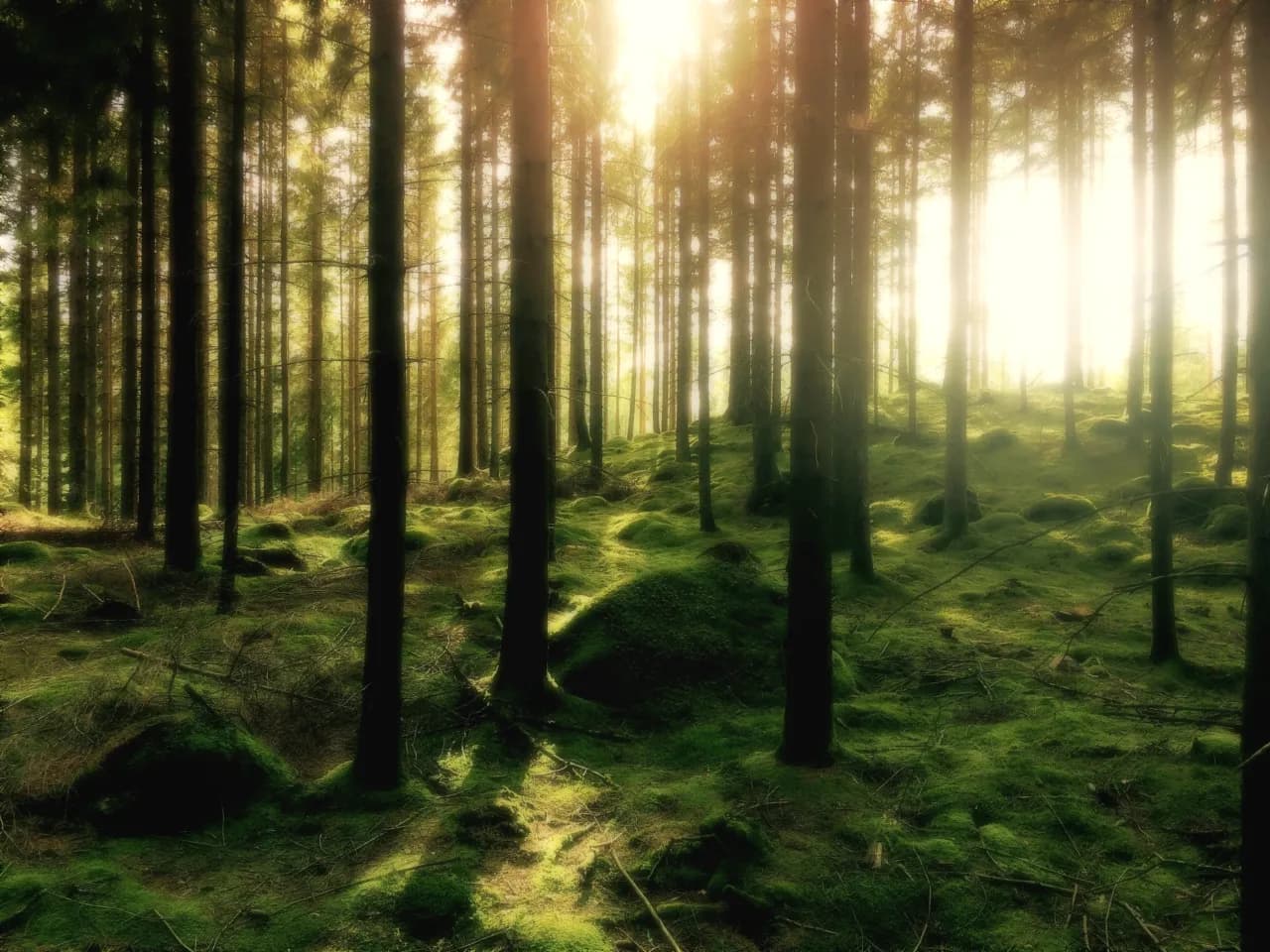
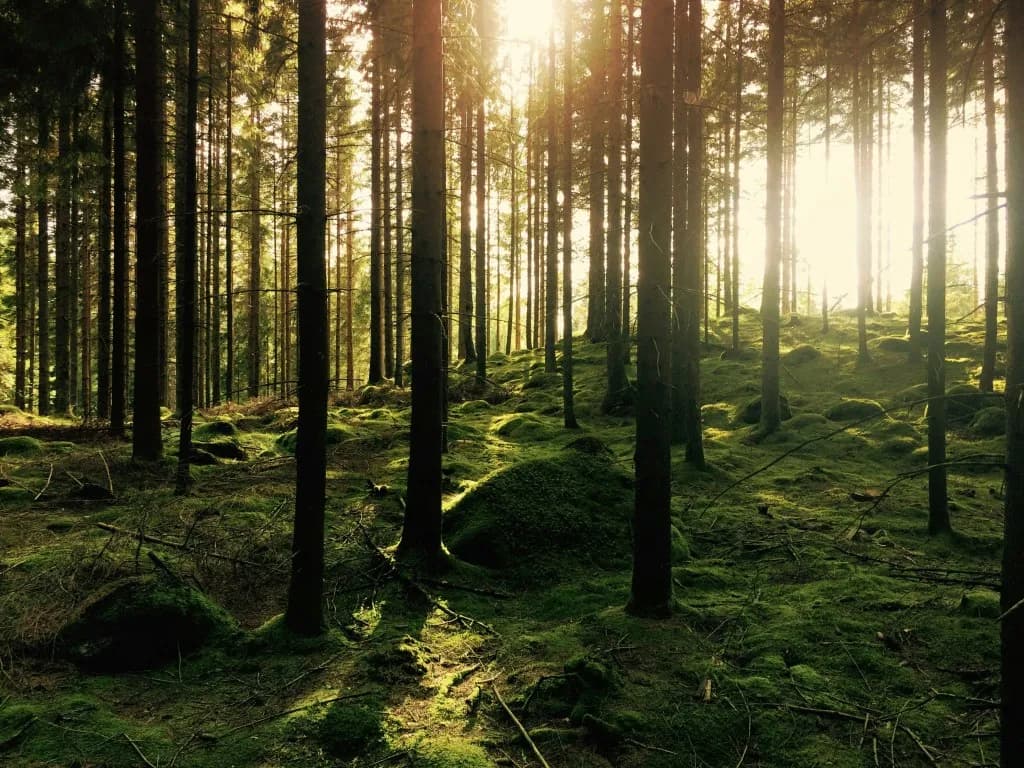
Before & After Haze Filter Effect
What is a Haze Filter? The Atmospheric Photo Effect Explained
A haze filter is a powerful photo editing technique that adds a soft, atmospheric mist-like quality to your images, creating depth and a dreamy, ethereal aesthetic. This effect simulates natural atmospheric conditions, adding a layer of soft diffusion that enhances mood and transforms ordinary photos into cinematic masterpieces. The haze filter works by reducing contrast in distant areas of your image and adding a subtle glow that creates visual depth, making landscapes appear more vast and portraits more romantic and soft.
Unlike traditional photo editing that requires expensive software and complex techniques, DreamyGlow makes it possible to add haze effects to your photos instantly with just a few clicks. Our free haze filter app uses advanced algorithms to detect depth and lighting in your images, then applies a natural-looking atmospheric haze that enhances your photo without making it look over-processed. The haze filter works wonderfully when combined with our soft glow for portraits, or try the ethereal glow for a more mystical look. Whether you are working with landscape photography, portraits, or architectural shots, the haze filter adds that perfect touch of atmosphere that elevates your photos from ordinary to extraordinary.
What sets DreamyGlow apart is our commitment to making professional photo effects accessible to everyone. Our haze filter is free to try with a watermarked preview, and works instantly in your browser. You do not need any editing skills or expensive software, just upload your photo, apply the haze filter effect, and download your transformed image. The entire process takes seconds, making it perfect for social media creators, photographers, and anyone who wants to add a touch of atmospheric magic to their photos.
Best Haze Filter Settings for Different Photos
For Portraits
- Intensity: 60-80%
- Blur Radius: 40-60%
- Best for: Romantic, flattering portraits
- Tip: Keep glow intensity higher for soft, dreamy look
For Landscapes
- Intensity: 40-60%
- Blur Radius: 30-50%
- Best for: Ethereal, atmospheric scenes
- Tip: Focus on maintaining sky and horizon definition
For Instagram Posts
- Intensity: 70-90%
- Blur Radius: 50-70%
- Best for: Bold aesthetic, cohesive feeds
- Tip: Combine with slight warmth adjustment (+10-15)
For Product Photography
- Intensity: 30-50%
- Blur Radius: 20-40%
- Best for: Elegant, premium feel
- Tip: Keep details sharp while adding subtle glow
How to Add Haze Filter to Your Photos (Step-by-Step)
1. Upload Your Photo
Start by uploading your photo to DreamyGlow. Our platform supports all common image formats including JPG, PNG, and WebP. Simply drag and drop your image or click to browse your files. There is no file size limit, and your photos are processed securely in your browser.
2. Apply Haze Filter Effect
Once your photo is uploaded, select the haze filter from our collection of atmospheric photo effects. You can preview the transformation in real-time and adjust the intensity to match your vision. The haze filter effect works automatically, detecting depth and lighting to create that perfect atmospheric look.
3. Download Your Photo
When you are happy with the result, simply click download to save your transformed photo. Your image is processed in high quality, ready to use for social media, printing, or any other purpose. Full-resolution exports have no watermark and no extra compression — just your beautiful photo with the haze filter effect applied.
Perfect For: Who Should Use Haze Filters
Haze filters are perfect for a wide range of photography styles and use cases. Landscape photographers love using haze filters to enhance sunrise and sunset shots, where the atmospheric effect intensifies the golden hour glow and creates depth in mountain ranges and distant horizons. Portrait photographers use haze filters to add a soft, romantic quality to their images, creating a dreamy backdrop that makes subjects stand out while maintaining a cohesive, ethereal aesthetic.
Wedding and event photographers find haze filters particularly useful for creating romantic, timeless images that capture the mood and atmosphere of special moments. Nature photographers apply haze filters to forest scenes and natural landscapes, adding depth and enhancing the mystical quality of outdoor photography. For magical sparkles, try our starlight effect. Even architectural photographers can benefit from haze filters when they want to create mood and atmosphere in cityscapes and urban photography. Whether you are a professional photographer or someone who just loves beautiful, atmospheric photos, the haze filter is a versatile tool that enhances almost any image.
Haze Filter vs Other Effects
Haze Filter vs Soft Glow
Haze Filter:
- ✓ Best for landscapes
- ✓ Adds atmospheric depth
- ✓ Creates misty effect
- → Try Haze Filter
Soft Glow:
- ✓ Best for portraits
- ✓ Focuses on highlights
- ✓ Creates light bloom
- → Try Soft Glow
Haze Filter vs Ethereal Glow
Haze filter creates atmospheric depth and misty effects perfect for landscapes, while ethereal glow adds a stronger mystical, spiritual quality ideal for artistic and portrait photography.
When to Use Haze Filter vs Vintage CRT
- Haze Filter: Natural, atmospheric look for landscapes and portraits
- Vintage CRT: Retro, nostalgic aesthetic for artistic and urban photography
Before & After Examples